How to Set Up IPTV on Fire TV Stick in 2026
Fire TV devices are popular because they can upgrade a television quickly, but the setup still depends on supported apps, clean account entry, enough free space, and a network path that remains stable under real viewing conditions.
On this page
- Prepare the Fire TV device before installation
- Check the connection and the room setup
- Choose a compatible player and supported installation path
- Enter credentials and let the guide load
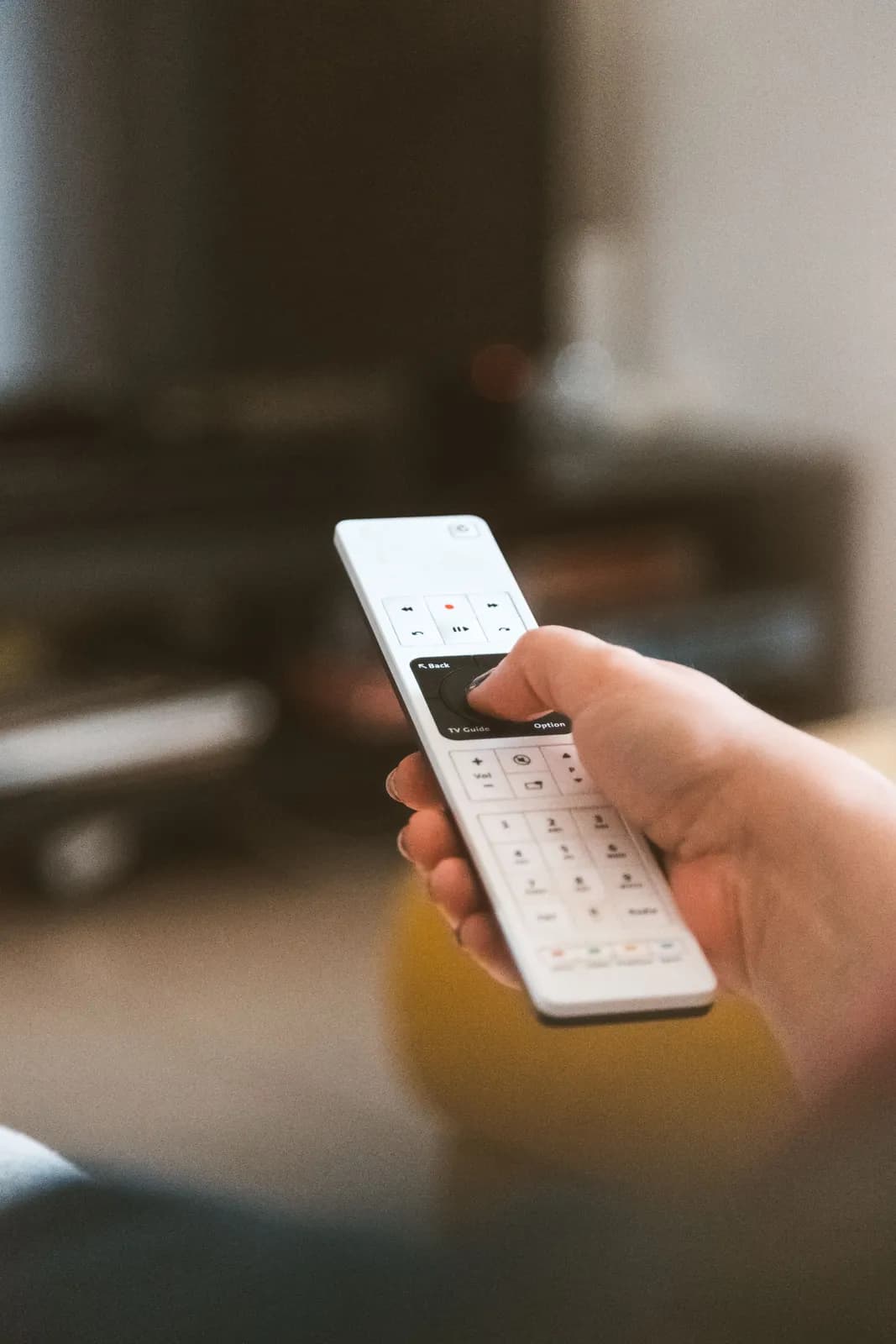
- Test remote navigation like a real viewer would
- Storage, cache, and general performance health
- When Ethernet adapters make sense
- Common Fire TV-specific issues
- How Fire TV behaves during real long-session use
- A practical Fire TV checklist before you call setup complete
- When Fire TV is the right answer
- Build a simple maintenance habit
- Know what confidence looks like
- Why Fire TV model differences matter more than many buyers expect
- Account errors, playback errors, and what they usually point to
- When a different streaming device makes more sense
Quick answer
To set up IPTV on Fire TV Stick, prepare the device with enough storage and a stable internet connection, install a compatible player using supported methods, enter the authorized account details carefully, let the guide populate where supported, and test playback before assuming the setup is complete.
Fire TV devices are popular for IPTV because they are easy to add to almost any television and often feel faster than aging Smart TV software. That convenience makes them a common first recommendation, but the real quality of the setup still depends on app support, storage, device maintenance, and network conditions in the room where the stick is used.
This guide keeps the focus on legitimate, supported setup practice. The goal is to install a compatible player through appropriate methods, connect it to your authorized account, and confirm that playback and guide features behave properly. If you are still deciding between platforms, step back and compare the best IPTV devices first.
Prepare the Fire TV device before installation
Start by checking that the Fire TV device is fully updated and has enough free storage to install and run the player comfortably. Low free space can make app behavior sluggish, interfere with updates, or cause the device to close applications more aggressively during long sessions. Preparation is not glamorous, but it prevents a lot of avoidable setup frustration.
Also make sure the device is in the room and network conditions where it will actually be used. A stick behind a television cabinet can behave differently from a device tested on an open desk. Heat, weak Wi-Fi, and background apps all matter more on compact streaming hardware than many people realize.
Check the connection and the room setup
Fire TV setup works best when the internet question is answered early. Confirm that the wireless signal is stable where the stick is installed, not just elsewhere in the house. If the television sits far from the router, the difference between a good connection and a marginal one can be the difference between smooth playback and repeated buffering.
If you use an Ethernet adapter or other wired accessory, test it deliberately rather than assuming it will always improve things. A solid wired path can help a lot, but only if the adapter and cabling are reliable. This is why the bandwidth discussion in recommended IPTV internet speeds is useful even for viewers who already consider their home internet fast.
Choose a compatible player and supported installation path
Choose a player that is compatible with Fire TV and available through supported methods for that environment. The exact app depends on the service and the account method provided, but the principle is straightforward: use a legitimate player path you can maintain, update, and troubleshoot over time. Avoid turning setup into a guessing game by installing random tools without a clear reason.
A supported path matters because it gives you a better chance of predictable updates, clearer permissions, and fewer unknown variables when something goes wrong. Fire TV can be very practical for IPTV, but only when the app layer is stable enough to support normal daily use rather than a one-time technical experiment.
Enter credentials and let the guide load
Once the player is installed, enter the account details slowly and carefully. A Fire TV remote is more comfortable than many television remotes, but typing errors still happen. Double-check all login fields before saving them. If the player supports EPG loading, allow enough time for the guide to populate and then confirm whether now/next and grid information appear as expected.
Guide behavior is a useful quality test because it touches multiple layers at once: login success, app compatibility, and data refresh behavior. If playback works but the guide does not, the issue may not be catastrophic, but it is still worth understanding. Our IPTV EPG guide explains what is normal and what usually causes missing or incorrect guide information.
If you are trying to confirm whether your credentials belong in a login field, a playlist field, or a portal-style field, start with login help and then move to portal help if the player asks for portal-based setup information.
Storage, cache, and general performance health
Compact streaming hardware benefits from regular housekeeping. If the device feels slow, check free space, remove unused apps, and make sure the system is not juggling too many background tasks. A device that is technically compatible can still feel poor if it is overloaded. That kind of slowdown often gets mistaken for streaming trouble when the real problem is local device pressure.
Some player apps may also benefit from clearing temporary cached data when troubleshooting persistent glitches, especially if the app behaves differently after updates or long use. Use that step thoughtfully rather than as a ritual. Clearing data can also remove saved login information, so it helps to have your account details ready before you take that path.
When Ethernet adapters make sense
An Ethernet adapter can help when the wireless path in the room is weak, crowded, or inconsistent. It does not automatically improve every setup, but it gives you a more controlled baseline for diagnosing network behavior. If buffering disappears on the wired connection, you have learned something important: the problem is probably not the player alone.
That result can guide the next decision. You may keep the wired setup, improve the wireless environment, or move the streaming device and router relationship into a better position. The key is that you are making the choice based on evidence rather than on assumptions about what should work in theory.
Common Fire TV-specific issues
The most common Fire TV issues are sluggish menus, full storage, background app interference, weak Wi-Fi at the back of the television, and confusion after updates. A device that runs hot inside a tight cabinet may also behave differently after an hour than it does during the first five minutes. These are practical hardware realities, not signs that the user did anything wrong.
When issues appear, work in a sequence. Restart the device, check free space, update the app, test another stream, and compare wired versus wireless if possible. If the symptoms look more like repeated playback instability than general menu slowness, use the wider IPTV buffering troubleshooting flow rather than guessing at random settings.
How Fire TV behaves during real long-session use
A Fire TV setup can feel excellent during the first few minutes and still reveal problems later in the evening. That is why the best test is not one quick channel load. It is a longer session that includes normal movement through the app, returning to the home screen, reopening streams, checking the guide, and noticing whether the device gets sluggish over time. Compact streaming hardware is sensitive to storage pressure, background activity, wireless quality, and sometimes heat accumulation, especially when it sits behind a television in a tighter physical space.
This does not mean Fire TV is unreliable. It means the setup should be judged the way people actually use it. A short trial run may hide the exact issues that matter most later: slower channel changes, a guide that feels heavy after longer browsing, or app behavior that worsens once the system has been active for an hour. If you want an honest picture, test during the kind of session you expect to repeat every week, not only during a five-minute technical check.
Accessories also play a bigger role on Fire TV than many buyers expect. A better power setup, a more stable network path, or an Ethernet adapter can change the experience more than another round of app reinstallations. The goal is to remove weak links in a controlled way. If the stick performs well after those changes, you have improved the environment. If it still feels constrained, that is useful evidence that a more capable device category may fit the room better.
The good news is that Fire TV remains one of the easiest platforms for practical experimentation. It is simple to compare room conditions, clear space, restart cleanly, and see whether the system responds better after a specific change. That makes it a strong platform not only for watching, but also for learning exactly what your household needs from the final setup.
A practical Fire TV checklist before you call setup complete
Before you consider a Fire TV setup finished, make sure the device can do more than load one stream. Confirm that the home screen stays responsive, the player reopens without confusion, the guide is readable where supported, and the remote workflow feels natural for the people who will use it most. Those checks matter because Fire TV is often chosen as a living room convenience upgrade. If the basic navigation still feels awkward or slow, the job is only partially done even if the account technically works.
Then check the environment around the device. Is the television placed where Wi-Fi is weaker than expected? Is there enough physical space behind the display for the hardware to stay comfortable? Does the stick or box have enough breathing room, power stability, and storage to handle repeated use? These details are easy to ignore during the first setup hour, but they shape long-term reliability. A setup that works only when the room is quiet and cool is not a strong everyday setup.
Also test the household pattern. If other people use the network at the same time, try the Fire TV during those conditions instead of only when the home is empty. Fire TV devices can perform very well, but they still reflect the quality of the network path that reaches them. Seeing how they behave under normal evening use gives you a more honest decision point than a one-person morning test.
Finally, decide whether the platform is good enough or genuinely good for your room. A lot of frustration comes from keeping a setup that is merely acceptable when a different device category would fit much better. Because Fire TV is easy to try, it can also be easy to keep too long out of convenience alone. Use evidence, not habit, to decide whether it remains the right hardware.
When Fire TV is the right answer
Fire TV is a strong choice when you want a practical living room upgrade, a familiar remote-driven interface, and a device that is easy to test in real conditions. It becomes an even stronger choice when the television's built-in platform already feels limiting and the room has a stable network path.
It becomes a weaker choice when the room itself is the bottleneck or when the device category no longer provides enough performance headroom for the way your household watches. That is not failure. It is simply a sign that the setup process did its job and showed you the right next move.
Build a simple maintenance habit
A Fire TV setup usually stays healthier when you treat it like an active device instead of a forgotten accessory. Check storage occasionally, keep the app updated, and notice whether the room or household pattern has changed in a way that affects performance.
Those small maintenance habits reduce the chance that ordinary wear turns into a confusing streaming problem later. They also make troubleshooting much faster because you start from a cleaner baseline.
Know what confidence looks like
You should feel confident enough that someone else in the house could use the setup without a long explanation. If the platform still feels fragile or overly fussy, keep refining it.
Why Fire TV model differences matter more than many buyers expect
Not every Fire TV device behaves the same way under IPTV use. Some models feel perfectly adequate for simple viewing but begin to slow down once a large guide, a long channel list, or several background apps compete for attention. Others have enough headroom that channel changes, home-screen returns, and guide navigation remain comfortable even after longer sessions. This is why a setup guide should talk about model behavior in practical terms instead of treating every Fire TV product as interchangeable.
The most relevant differences are usually not abstract benchmark scores. They are memory pressure, storage headroom, wireless stability, and how the interface feels after ordinary use. A device used only for one app may stay smooth far longer than a device crowded with many unused apps and cached data. A stronger model may also recover from multitasking more gracefully if the household frequently switches between streaming services, utility apps, and playback tools.
This matters for troubleshooting because people often blame the service first when the real issue is that the hardware category is running closer to its limits than expected. If one Fire TV device behaves well and another struggles in the same house, the comparison is useful evidence. It tells you that the service path may be acceptable while the local device environment still needs a better fit.
A good rule is to judge the model by the workflow you actually use. If you rely heavily on guide browsing, channel switching, subtitle toggling, and longer live sessions, the hardware demands are different from those of a viewer who opens one stream and leaves it alone. Match the device to the habit, not only to the price point.
Account errors, playback errors, and what they usually point to
Fire TV setup errors often fall into three broad groups: login problems, playback problems, and interface-performance problems. Login problems usually come from incorrect account entry, stale saved data, or confusion about which credentials belong in which field. Playback problems more often point to network consistency, app behavior, or device load. Interface-performance problems usually show up as slow menus, delayed remote response, or instability after the app has been open for a while.
Separating those groups helps because each one has a different best first move. If the channel list never loads, double-check credentials before changing network settings. If menus are normal but the stream keeps stalling, compare Wi-Fi with Ethernet and test another stream. If the whole device feels heavy, free storage, restart cleanly, and reduce background load before assuming the service itself changed overnight.
Audio-sync issues and subtitle behavior also belong in this practical error map. They are not always signs of a broken setup. Sometimes they reflect player-specific handling of certain content, device processing load, or a setting that carried over from another session. Testing the same content on another device can quickly tell you whether the symptom follows the account or stays tied to the local Fire TV environment.
The point of this classification is not to make setup feel complicated. It is to keep you from treating every symptom as the same problem. Once you know whether you are dealing with account entry, playback delivery, or device performance, the path forward becomes much clearer.
When a different streaming device makes more sense
A Fire TV stick is not automatically the final answer for every room. If you need more processing headroom, better long-session stability, more storage, or a different app ecosystem, a stronger device category may be worth it. The best sign is not brand loyalty. It is whether the current setup keeps forcing workarounds that interrupt normal viewing.
If that sounds familiar, revisit the broader best IPTV devices comparison and choose based on performance and room needs rather than habit. Sometimes the right decision is not more troubleshooting. It is a cleaner hardware fit.
Need help after testing the normal fixes?
Use the support route with the Fire TV model, app version, network type, and a short note about whether the issue affects one stream or many.
Get Support HelpFAQ
Can Fire TV be better than a Smart TV for IPTV?+
Often yes, especially when the television's built-in platform feels slow or does not support the needed player well.
Why does Fire TV setup work at first and then slow down later?+
Storage pressure, background apps, heat, and wireless conditions can all affect long-session performance over time.
Should I use an Ethernet adapter with Fire TV?+
If the room has weak or inconsistent Wi-Fi, an Ethernet adapter can be a very useful test and may become the better permanent setup.
What should I test after the first successful login?+
Test live playback, guide behavior, remote navigation, reopening the app, and at least a few different streams or sections.
Sources & further reading
Related Guides
Keep reading
Best Devices for IPTV in 2026: Smart TVs, Fire TV, Android TV and More
A device-by-device guide to choosing the right screen for IPTV, from Smart TVs and Fire TV sticks to Android TV boxes, phones, tablets, and desktop computers.
18 min read · August 9, 2026
IPTV Buffering? 15 Ways to Diagnose and Fix Streaming Problems
A structured troubleshooting guide for IPTV buffering, freezing, and lag that helps you separate internet issues, device issues, app issues, and provider-side symptoms.
19 min read · August 9, 2026
How Much Internet Speed Do You Need for IPTV? HD, Full HD and 4K Explained
A realistic guide to IPTV speed requirements, bandwidth planning, Wi-Fi behavior, and why stable delivery matters more than a single impressive speed test result.
17 min read · August 9, 2026