01
Live TV Hub
Organized live channel access covering international news, sports, and regional broadcasts with a familiar guide workflow.

EagleCast TV IPTV streaming
EagleCast TV is an IPTV streaming service for watching live television channels, sports broadcasts, movies, series, and catch-up entertainment across compatible devices. Review the subscription packages, test your setup with a trial, and get support before choosing a plan.
Our multi-format account credentials support Xtream Codes API, M3U playlists, and MAG portals natively across Smart TVs, Firestick, Android, iOS, and Windows platforms.
EagleCast TV Setup/24/7 Support Listed/Fast Activation/4K Ready Where Sources Allow/Multi-Format Login
Explore our step-by-step getting started tutorial to configure your hardware before purchase.
What is EagleCast TV?
EagleCast TV is a subscription-based Internet Protocol Television (IPTV) streaming service built for viewers who want live TV, sports events, movies, series, and catch-up entertainment in one unified platform. Instead of relying on proprietary cable boxes or satellite dish installations, EagleCast TV delivers video streams directly over your broadband internet connection to compatible applications on the screens you already own.
Behind the scenes, IP video delivery relies on standardized network protocols. EagleCast TV accounts support all major connection methods—including dynamic Xtream Codes API database queries, custom M3U and M3U8 playlist manifests, and hardware-bound Stalker MAC address portals. Understanding how these connection formats work helps viewers select the ideal setup for their hardware, as explained in our detailed guide to IPTV playlist formats.
For most households, evaluating an IPTV subscription requires more than browsing a channel list. It involves confirming device compatibility, playback behavior, electronic program guide (EPG) support, and customer support access. That is why EagleCast TV provides a trial option alongside setup guides for login help, portal help, and service features.
Getting started is straightforward when supported by step-by-step documentation. Viewers can explore our comprehensive tutorial on getting started with EagleCast TV to set up their streaming hardware, or review our DIY troubleshooting guide for network and buffer optimization.
EagleCast TV is best suited to viewers who want live TV streaming alongside on-demand entertainment: sports fans who follow matches and PPV events, households that split time across a living room TV and mobile screens, and customers who want a trial-first path before selecting a subscription. For a deeper look at how IPTV is positioned against cable and streaming options, start with the IPTV vs cable overview.
Service Features
EagleCast TV covers the core viewing habits of modern households: live channels for everyday watching, sports broadcasts for match nights, on-demand video libraries for movies and TV series, and time-shifted catch-up television. Consolidating these categories into one streamlined IPTV workflow keeps viewing, guide browsing, and support in a single setup path.
The practical benefit is a single set of account details, one guide to browse, and one support route for questions. Whether you are switching screens from the living room TV to a phone, you stay in the same application workflow instead of rebuilding setup steps on every device.
Whether you are exploring what IPTV is or evaluating IPTV vs cable streaming, understanding how channel guides and schedules operate is essential. Our comprehensive guide to IPTV EPG explains how program guide schedule grids sync with player apps.
01
Organized live channel access covering international news, sports, and regional broadcasts with a familiar guide workflow.
02
Follow match nights, championship events, and live sports viewing with setup guidance for compatible apps.
03
Browse structured Video on Demand (VOD) entertainment libraries complete with poster art, ratings, and episode groupings.
04
Access time-shifted catch-up television to return to available broadcasts without relying only on the live moment.
05
Navigate channels, current showtimes, and upcoming programming with interactive XMLTV guide schedule grids.
06
Watch on Smart TVs, Android TV, Firestick, iPhone, iPad, Windows PCs, and MAG set-top boxes.
07
Compare plan terms, ask about renewals, and confirm setup needs with the EagleCast TV support team.
08
Get help with app selection, login input, portal activation, network calibration, and troubleshooting.
EagleCast TV Subscriptions
Review available EagleCast TV subscription packages, then test your device setup with a trial before selecting the term that fits your viewing routine.
Every published term shares the same core service, so the real choice is the length of access — plus whether you need extra screens. The 3, 6, 12, and 24-month lines below show the per-month value at each depth. If a specific duration or a household multi-screen setup fits better, the support team can confirm the applicable details before you commit.
All plans include multi-format credential support (Xtream Codes API, M3U playlists, MAC Portals), full access to live television and VOD libraries, interactive EPG guide data, and direct technical support. For custom duration inquiries, payment questions, or multi-screen setups, visit our pricing page or contact EagleCast TV support.
3 Months
Flexible short-term access to test out premium streaming.
$12.33/mo
6 Months
Great value for regular sports & entertainment viewers.
$8.16/mo
12 Months
Our most popular package. Maximum stability & best value.
$5.58/mo
24 Months
Long-term VIP pass. Lock in the absolute lowest rate.
$4.58/mo
Device Compatibility
Share your device during the trial request so support can recommend the ideal application and installation walkthrough.
EagleCast TV supports standard IPTV applications across Smart TVs (Samsung Tizen, LG webOS, Android TV), Amazon Firestick / Fire TV devices, Android smartphones and tablets, Apple iOS (iPhone & iPad), Windows PCs, and MAG set-top boxes. Starting with your existing TV or streaming device avoids purchasing unnecessary external hardware.
To choose the best setup for your screen, explore our detailed review of the best devices for IPTV, follow our step-by-step Smart TV setup guide, or consult our dedicated Fire TV setup guide.
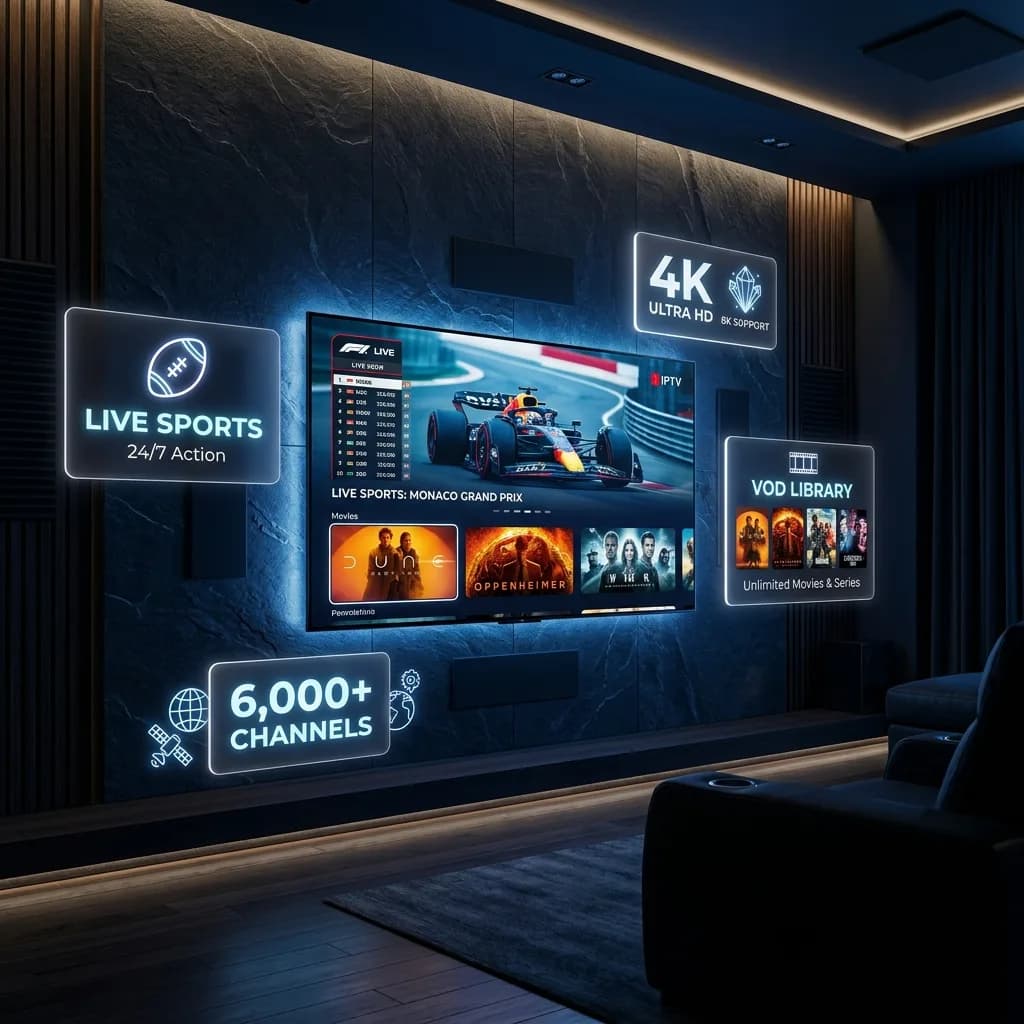
How to Get Started
01
Select the room, television, or mobile screen you use most frequently.
02
Use the trial to verify credential login, guide loading, and stream quality.
03
Follow player setup guidance and optimize 5GHz Wi-Fi or Ethernet settings.
04
Choose the 3, 6, 12, or 24-month package that fits your viewing routine.
EagleCast TV works best when viewers begin with the device and room they actually use most. That keeps your trial testing grounded in real-world conditions. Once your player application is installed and credentials are entered, test live channel switching, sports broadcasts, and guide grids during peak household internet usage hours.
Streaming performance depends directly on network infrastructure. A stable 4K-ready setup requires consistent download throughput and low latency. Review our technical guide on internet speed for IPTV, follow our complete manual to optimize your home network, and learn how to resolve stream freezing in our IPTV buffering guide.
After your initial setup is confirmed, save your account details and preferred player configuration. This ensures future line renewals, support inquiries, and multi-device additions proceed smoothly.
Service Information & Support
EagleCast TV support covers the moments that matter: choosing a plan, confirming your device before you pay, entering credentials, and resolving playback issues after activation. Use the official support routes for subscription questions, payment instructions, service information, and account help.
For self-service help, the DIY troubleshooting guide walks through how to describe an issue, while the getting started tutorial covers requesting trial access and choosing a first screen. Both routes prepare you to get the most from a support conversation.
If buffering or freezing shows up after setup, start with the buffering guide and the internet speed guide, then contact support with your device, app, and network details.
Contact EagleCast TV SupportReach the EagleCast TV team about package questions, activation, renewals, and technical issues through the official contact routes.
Contact pageGuidance for finding, re-entering, and troubleshooting the login credentials used with your subscription line.
Login helpUnderstand portal-based setup, where portal details come from, and what to verify when a portal cannot connect.
Portal helpBrowse answers on trials, devices, activation speed, 4K-ready playback, multi-screen access, and buffering fixes.
Visit the FAQHelpful Answers
Frequently asked questions about IPTV streaming, player applications, supported devices, connection formats, trial setup, buffer troubleshooting, and subscription support. For the full set of answers — including payment, trial timing, and device-specific workflow — visit the complete EagleCast TV FAQ page.
Yes. Request an EagleCast TV trial so our support team can confirm your preferred player application, device compatibility, and home internet connection before you select an official subscription plan.
EagleCast TV supports common IPTV workflows across Smart TVs (Samsung Tizen, LG webOS, Android TV), Amazon Firestick, Android devices, iOS (iPhone/iPad), Windows computers, and MAG set-top boxes.
EagleCast TV subscription lines support multi-format credential logins including Xtream Codes API (server URL, username, password), custom M3U/M3U8 playlist URLs, and Stalker MAC address portal links.
Share your device model, streaming application, and viewing priorities with support. Our technical team will guide you through app installation, credential entry, guide mapping, and player buffer settings.
EagleCast TV is 4K-ready where channel source availability, device capability, app settings, and home network quality support higher-resolution video playback.
First verify your home internet speed and latency. Use 5GHz Wi-Fi or Cat6 Ethernet, set custom public DNS servers (such as Cloudflare 1.1.1.1), enable hardware GPU decoding in your app, and follow our troubleshooting guide.
Standard EagleCast TV packages include one active device connection per subscription line. Contact support if your household requires multi-screen options before purchase.
Choose a published subscription term, confirm your device and setup needs with support, and use the official support route for payment and activation instructions.
Ready to Start?
Request your trial line today to test setup on your Smart TV, Firestick, Android, or set-top box before selecting a package.