IPTV Login Formats Explained: M3U, Xtream Codes, and Portal Setup
IPTV players commonly use a playlist URL, a server-and-credentials login, or a portal workflow. Choosing the format your provider supplied prevents avoidable setup mistakes.

On this page
Quick answer
Use the exact format supplied for your account: an M3U playlist is a URL or file, a server login usually needs a server address plus username and password, and a portal setup can require a device identifier. Do not convert or share credentials through unknown websites.
There is no universal IPTV sign-in screen. The safe first step is to identify the fields your player accepts and match them to the information you received. A player is separate from a content source, so app availability and login compatibility both matter.
This guide explains the formats without providing downloads or claiming ownership of third-party apps. For app selection, use the IPTV player comparison.
Before touching a field, write down the device model, player name and version, supplied login method, and exact error message. Those facts separate a compatibility question from a typing mistake. A television player that offers only a portal field cannot use a playlist pasted into a generic server field just because both contain a web address. Comparing the supplied format with the labels on the actual screen is more reliable than searching for a similar-looking setup video.
Use a low-risk order on a new screen. Install a player from its publisher-controlled store where available, let it update, and inspect its sign-in choices before adding account data. Enter one account profile, complete one method, and stop if a field is unfamiliar. Do not combine values from a playlist message, an old portal photo, and a different player's instructions. That creates a profile that no provider or app publisher can diagnose.
A successful first sign-in is not a complete setup test. Open the guide, move between categories, restart the player, and observe whether the account profile remains present. If a player loads a list but the guide is empty, treat guide data as a separate issue instead of replacing credentials. If video starts but navigation is slow, compare the same player on the same network before changing server settings. Controlled checks produce better evidence than repeatedly reinstalling apps or trying every format at once.
A simple decision path keeps this process practical. If the supplied information is one complete address intended for a playlist field, begin with a player that explicitly accepts playlist URLs. If the information is separated into a server address, username, and password, choose a player that exposes those separate fields. If the instructions name a portal workflow or device-specific identifier, use only a player that documents that workflow. In each case, the supplied method comes first and the player choice comes second. Do not select a player because it is popular and then try to force account details into it. When the supplied information is incomplete, contradictory, expired, or does not name a format, contact the legitimate provider through a verified route and ask which field set applies. That is safer than trying every option, entering credentials into unrelated applications, or assuming that a similar domain or message is authoritative.
Keep a small verification record after setup: device, player, login format, date tested, and the one change that resolved an issue, if any. This is especially useful when a household has several screens with different apps. It lets you reproduce a known-good setup without storing a full credential in a casual note. If a replacement device needs a different format, treat it as a new compatibility check rather than copying every setting from the old player.
Use a two-column note when comparing formats. In the first column, copy only the labels named in the original instructions: playlist, server, username, password, portal, or device field. In the second, write the matching field name shown by the installed player. A blank match is a reason to stop, not a reason to improvise. This is particularly helpful when a player calls a server an address, host, or URL, because the label may be different while the required value is still one supplied server address. It also prevents a common error: treating a display name as an authentication field. A display name can usually be anything you recognize; a server, playlist, portal value, username, or password cannot. For a broader overview of service pages, setup resources, and device guidance, explore EagleCast TV. The homepage link is a starting point for this website's resources, not a claim that it owns another EagleCast-branded domain or application.
When comparing results, describe observable behavior rather than assigning a cause too early. “The player rejects the password field immediately” is useful. “The service is down” is an assumption unless a verified provider confirms it. “The playlist loaded but the guide did not appear after a restart” is useful. “The URL must be wrong” may not be. Good notes help distinguish account authentication, player compatibility, guide data, device clock, and home-network questions. They also reduce the temptation to send credentials to a stranger who offers a quick fix. If you do contact a legitimate provider, ask a narrow question: which login format applies to this player, whether the supplied value is still current, and what non-sensitive details they need to diagnose the issue. Keep any reply with account details private, and do not assume a copied chat message or a search result establishes authorization.
Treat the original delivery method as evidence, not as an instruction to expose account details elsewhere. A complete playlist address belongs in a compatible playlist field; it is not a username, password, or portal address split across several boxes. Likewise, a server-style login normally has three distinct values whose roles should not be guessed from their appearance. A server address may already include a protocol such as `https://` and a port; removing part of it or pasting it into a web browser does not prove that it is wrong. Preserve punctuation exactly, avoid adding quotation marks, and use the player's paste action if one is available. If a copied value begins or ends with a space, compare it with the original carefully before submitting. Repeated failures after a clean copy are a reason to pause and ask the legitimate provider which value belongs in which documented field, not a reason to send a screenshot containing every credential to a public forum.
Separate account problems from device problems with one controlled test. First, confirm the device date and time are automatic, the player is current, and the network can load ordinary websites or other permitted services. Then enter the supplied method once in the correct kind of field and record the exact response. An immediate authentication error can point to a mistyped or no-longer-valid account detail; a connection error can point to the address, network, or player; an empty list after acceptance can be a different content or guide question. Those labels are clues, not diagnoses. Do not keep retrying rapidly, create duplicate profiles, or switch among random apps, because those actions make the result harder to interpret and can trigger account safeguards. A provider that legitimately supports the account can make a much better decision when you provide the player name, device type, time of the attempt, and the error text without publishing the credentials themselves.
Plan for normal account changes as well. Replacing a television, resetting a streaming box, changing players, or moving from home Wi-Fi to a travel network can all require another documented compatibility check. Before discarding a working profile, note only the non-secret setup facts: player name, selected login type, whether a display name was used, and any provider-approved device-registration step. Store passwords in a reputable password manager or another private method rather than in a photo album, shared chat, or visible label on the device. Sign out or remove the profile before selling, returning, or lending a device, then confirm that saved account data is gone. These precautions do not establish any provider relationship; they simply reduce the chance that an account intended for one household is exposed through an old device or an unverified support conversation.
Recognize an M3U playlist
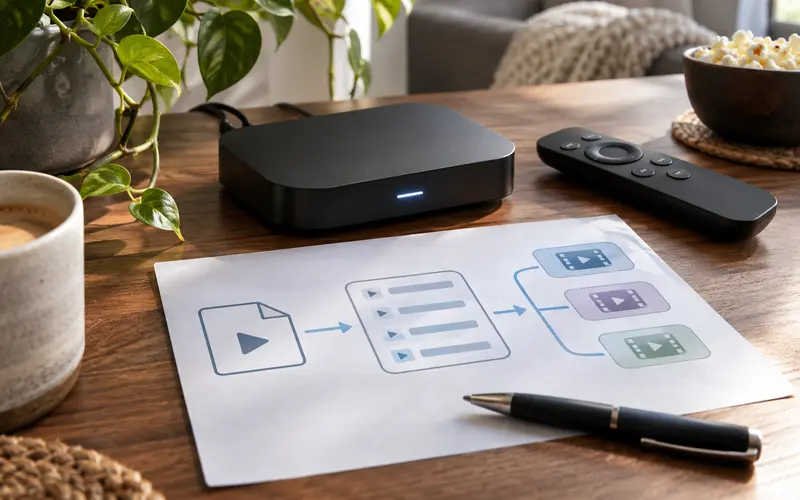
An M3U or M3U8 address is a playlist reference. A compatible player may ask for a playlist URL and a display name. Copy the complete address exactly; changing punctuation, adding spaces, or shortening it can make a valid address fail.
Check that the player explicitly supports playlists before entering anything. A playlist is not automatically compatible with every device or app.
A supplied playlist often looks like a long web address and may include punctuation that is meaningful. Copy from the original message rather than retyping it, and do not remove a path, query parameter, or trailing character because it looks unnecessary. A player may also ask for a friendly playlist name; that label is only for your own recognition and is not a substitute for the address. If a player offers both a file upload and a URL field, use only the form that matches what you actually received.
| Format | Usually asks for | First check |
|---|---|---|
| M3U | A complete playlist URL | Player supports playlists |
| Server login | Server address, username, password | All three values match |
| Portal | Portal address and device-specific field | Player documents portal workflow |
Use server, username, and password fields carefully
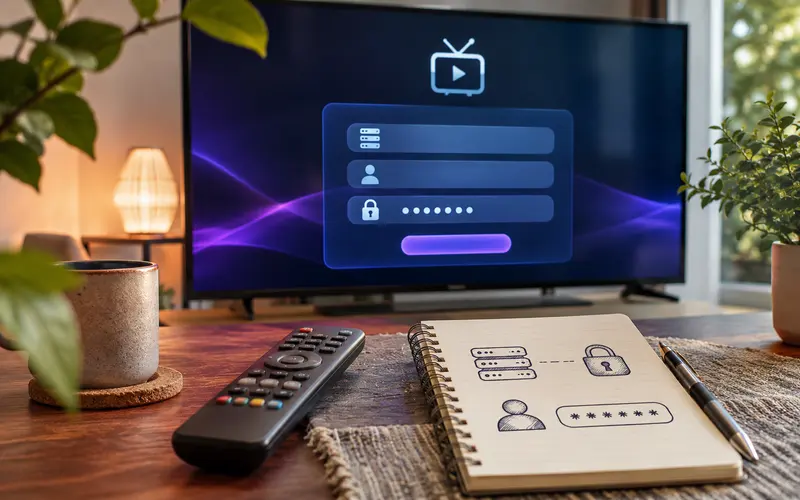
Some players group a server URL, username, and password into one account profile. Enter each value in its intended field rather than pasting all values into a playlist box. A server address is not the same as a website homepage.
Before retrying repeatedly, compare the characters with the supplied details and confirm the device clock and connection are working.
API-style credentials are a bundle, not three interchangeable fragments. A common mistake is adding a browser page path to a server field, pasting the username into a display-name field, or treating a temporary password as case-insensitive. Work from the original information in a secure note and compare one field at a time. If the player masks a password, use its reveal control only in a private setting; do not take a screenshot to make later typing easier.
- Keep the original details in a private password manager or secure note.
- Do not post a full URL or password in a public support request.
- Use login help when the field names are unclear.
Understand portal-based setup
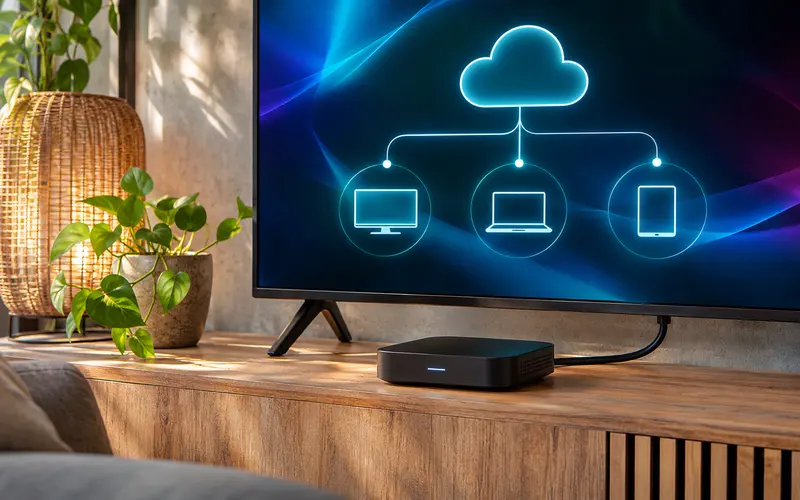
Portal workflows vary by player. They can use an endpoint plus a device-specific identifier, and a value from one player may not belong in another. Never guess a portal value from an old screenshot.
Read the player documentation and then review portal help for a plain-language explanation of the fields.
Some portal-capable players identify the device during setup, while others expose an additional device or MAC-style field. That does not mean every box, television, or app accepts the same identifier. Treat the labels in the installed player as the source for that player and avoid copying identifiers from another household screen. If setup instructions do not say which field is required, pause rather than inventing an endpoint or changing a value that already works elsewhere.
Match the format to a compatible player

Choose a player that is available through a publisher-controlled store for your device and supports the format you actually have. Similar-looking apps can expose different login options.
Do not use a conversion site merely to make a format fit. That can expose credentials and does not prove the resulting setup will work.
Compatibility has three parts: the operating system must support the player, the player must support the supplied login method, and the device must remain usable once the guide and playlist load. Test navigation with the actual remote or accessibility tools used at home. A technically accepted sign-in can still be a poor fit if the guide is difficult to read, Back navigation traps the user, or the device becomes unresponsive after ordinary use. Use the device guides to prepare the intended screen before making changes to account data.
Treat account details as credentials
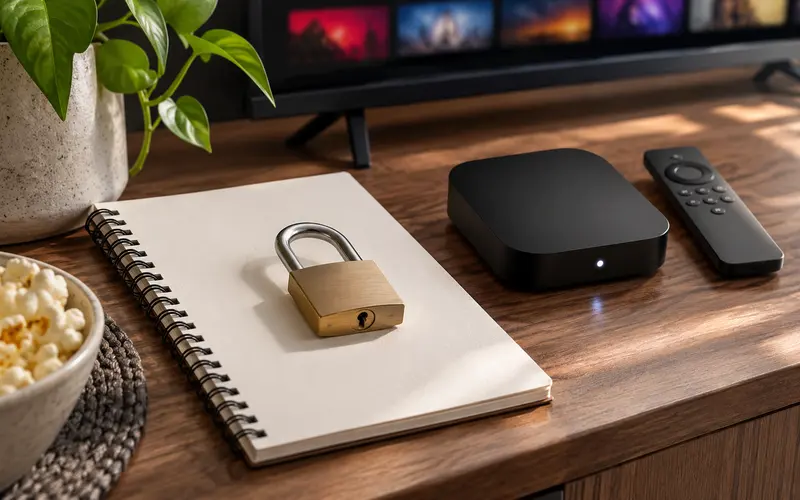
Playlist addresses, portal values, usernames, and passwords can grant account access. Keep them out of screenshots, public forums, and unverified apps. If you reset an app, save only the information you are entitled to use before clearing its data.
A legitimate troubleshooting step asks for the smallest detail necessary, such as the player name and the error wording.
Separate information that identifies a problem from information that grants access. A useful support note can say that a player showed an authentication error after a server login, name the device, and state whether the same issue happens on another compatible screen. It should not include a complete playlist URL, password, portal value, or a photo of a settings page. Rotate or replace details only through the legitimate account process; changing them locally without authorization can create a mismatch that looks like a technical fault.
Troubleshoot a sign-in in a controlled order
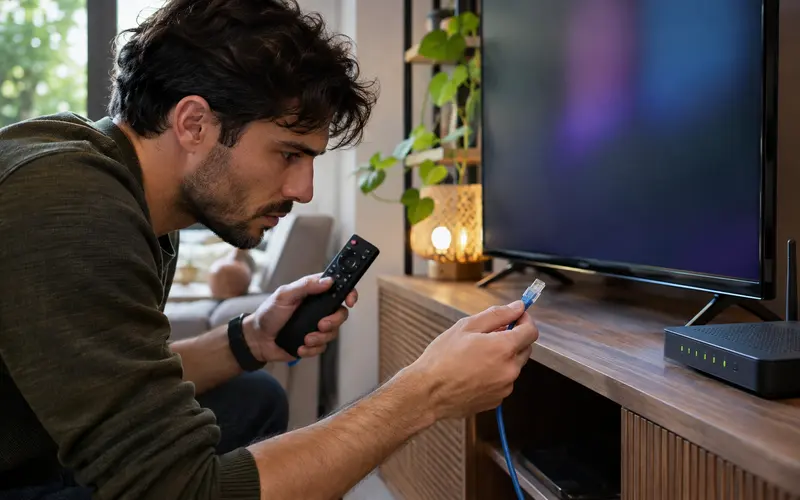
First test the device connection, then re-check one field at a time, then confirm the player supports the chosen format. Trying several apps at once makes it difficult to know which change mattered.
If the same credentials fail on every compatible device, record the exact message and seek a verified support route rather than repeatedly sharing the details.
Use this checklist before escalating: confirm the device has an ordinary internet connection; verify the player is current; compare the login format with the supplied instructions; check each character once; and test one supported player rather than several unknown ones. Then stop. Repeated attempts can lock you into assumptions and make it harder to describe what changed. A concise record of the time, device, player version, format, and error gives a legitimate provider more useful information than a collection of partial screenshots.
Test before changing advanced settings

After a sign-in succeeds, let the guide and playlist load, open a few categories, and restart the player once. This is a better compatibility check than treating one loading screen as proof that every feature works.
For device-specific preparation, start with the tutorials hub.
Keep the first verification modest. Confirm that the account profile saves, a representative category opens, the guide behaves as expected where it is supported, and the player can be closed and reopened. Do not use one successful channel as proof that every feature, screen, or advanced setting will work. If the result changes after only one adjustment, record that adjustment before changing anything else. This makes later troubleshooting reversible and protects the working configuration you already have.
Practical takeaway
Use the supplied format, a compatible player, and a private record of the minimum account details. The right format is the one your authorized setup provides—not the one that appears easiest in a random app.
FAQ
Is an M3U URL the same as a portal?
No. They are different setup methods and should be entered only in compatible player fields.
Can I convert any IPTV login format?
Do not assume so. Conversion tools can expose credentials and may not preserve required account behavior.
Why does one player accept my details while another does not?
Players support different login methods and fields.
Should I share my playlist URL in a screenshot?
No. Treat it as sensitive account information.
Sources & further reading
Related Guides
Keep reading

How to Compare IPTV Player Apps for Your Device
Compare IPTV player apps by verified availability, login compatibility, remote navigation, guide behavior, playback, accessibility, privacy, and total cost.
13 min read · November 6, 2026
How to Set Up TiviMate on Android TV and Fire TV
Set up TiviMate with a provider-supported playlist, API login, or portal, then verify the guide, playback, and account limits without exposing credentials.
12 min read · November 6, 2026