How to Reduce Mobile Data Use When Streaming IPTV
Mobile streaming can consume a plan quickly. Use your device settings, player controls, and Wi-Fi habits to measure and reduce data use before a trip or hotspot session.
On this page
Quick answer
Start by checking per-app cellular usage in your phone settings, use trusted Wi-Fi when available, and choose a player quality setting only when it is documented and appropriate. Measure your own session because stream quality, duration, and app behavior vary.
There is no honest universal number for how much data an IPTV session uses. Resolution, bitrate, player behavior, network conditions, and time watched all change the result. Your phone's own usage meter is the most useful starting point.
This article covers data management, not a promise of playback quality. For network diagnosis, see the IPTV buffering guide.
Start by separating the data you can control from the data you cannot. You can decide whether a session uses cellular or Wi-Fi, whether a phone is sharing a hotspot, and whether background downloads are allowed. You cannot assume every live stream, player version, or network path uses the same amount of data. A thirty-minute session on a phone can differ from a session cast to a larger screen, even when the same account is involved.
For a weekend trip, check the phone plan before leaving, download operating-system and player updates over trusted Wi-Fi, then run a short cellular test at the destination. If the total rises more quickly than expected, stop and inspect the phone's per-app usage screen before changing network settings. This sequence avoids blaming the player for a cloud backup, another hotspot device, or a forgotten stream that kept playing in the background.
Data management is also a usability habit. Keep a charging cable available for hotspot tests, watch the phone's signal and battery state, and avoid making a long travel session your first experiment with a new app. When Wi-Fi is available, confirm that the device has switched away from cellular. When only mobile data is available, choose a short test, measure it, and decide whether the result fits your plan. The goal is a deliberate choice, not a promise of a fixed data total.
Turn a plan allowance into a monthly worksheet before a trip. Start with the allowance you are comfortable using for entertainment rather than the plan maximum; reserve part of the plan for maps, calls, work, and unexpected use. Estimate the hours you expect to watch each week, multiply by an intentionally conservative GB-per-hour figure, then multiply by four. Compare that result with the entertainment portion of the allowance. If the estimate is close, lower the planned hours, use Wi-Fi for longer sessions, or choose shorter measured checks. Revisit the worksheet after the first week with actual device totals. This is more useful than relying on a single bitrate example because adaptive streams, roaming rules, and another person's hotspot use can alter a real bill.
When several people travel together, give each device its own short baseline test instead of assuming one phone represents every screen. A tablet, television stick, and laptop may use the same hotspot differently. Write down the connection, time, and measured increase for each test. That small worksheet turns a vague concern about data into a limit the group can actually manage.
Build a simple decision rule before pressing play. If the phone is on a trusted Wi-Fi network and the app confirms that it is not using cellular data, a longer session may fit your normal home or hotel plan. If you are relying on a hotspot or cellular signal, start with a measured fifteen-minute session and multiply only after checking the actual result. If the phone is roaming, use the carrier's current allowance and price terms rather than the domestic plan description. This approach does not require a special calculator: record the starting total, the end total, minutes watched, and whether other devices were connected. The resulting number belongs to that particular device and stream, but it is far more useful than a broad claim about how much “IPTV” uses. Readers who need device, player, and setup guidance can also explore EagleCast TV through this website's homepage resources.
A data-saving choice should preserve the parts of viewing that matter to you. If a lower documented quality setting makes captions unreadable, motion distracting, or the interface hard to use, it may not be an acceptable saving on that screen. If a hotspot test shows the device is stable but the allowance is too small, reducing the session length or waiting for trusted Wi-Fi can be more sensible than changing every app setting. Recheck the plan after operating-system updates, a device replacement, or a carrier change because the available controls and billing period can change. Keep the process reversible: note the original setting, change one control, test a normal session, and restore it if the trade-off is not worthwhile. This article provides planning methods, not a guarantee of cost, picture quality, or network performance.
Use the bitrate estimate as a worksheet rather than a promise. At 1.5 Mbps, the rough calculation is 1.5 × 0.45, or about 0.7 GB for an hour; at 3.5 Mbps it is about 1.6 GB; at 6 Mbps it is about 2.7 GB. For a planned eight hours of viewing in a month, multiply the cautious hourly estimate by eight, then leave room for normal phone use. If the stream adapts between bitrates, its final total can land above or below the estimate because the phone may spend more time at one quality level than another. A brief measurement tells you whether the assumed bitrate is realistic. Record the total before the test, watch for a fixed number of minutes without other devices on the hotspot, and calculate the increase per hour. Repeat on another day if signal conditions are very different. The range from those tests is more honest and more useful than pretending a single number applies everywhere.
Phone settings are most helpful when they separate the player from the rest of the device. On Android, the wording varies by manufacturer, but Settings commonly provides an app data-usage view and a way to limit background data or cellular access for an individual app. On iPhone, Settings includes Cellular controls where you can review and disable cellular data for selected apps; the current cycle total depends on when you last reset the statistics. Check the label on your own version before changing it, because turning off cellular access may stop playback when Wi-Fi drops rather than merely lowering quality. Also review automatic app updates, photo backup, offline downloads, and software updates. These can consume the same allowance while a viewer assumes that the video player is responsible. Make one change at a time and leave a note of what it was so that a useful accessibility, messaging, or navigation app is not accidentally left without data later.
A hotspot deserves its own budget because the phone becomes both a viewer and a connection for other equipment. A television stick, tablet, laptop, game download, or another passenger's device can add traffic even while the phone screen is off. Before a longer hotspot session, disconnect devices that are not being used, turn off automatic downloads where the operating system permits it, and check the hotspot page or carrier app for connected-device totals. On a trip, do the same check after crossing a border or changing carriers: roaming allowances, throttling, and overage treatment can differ from domestic terms even when the plan name is familiar. Public Wi-Fi may save cellular data, but it is not automatically trustworthy; follow the venue's legitimate sign-in process, avoid entering sensitive account data into unknown prompts, and prefer a private connection for account changes. These steps manage exposure and cost; they do not guarantee a particular stream will be available or perform consistently.
Measure before trying to save
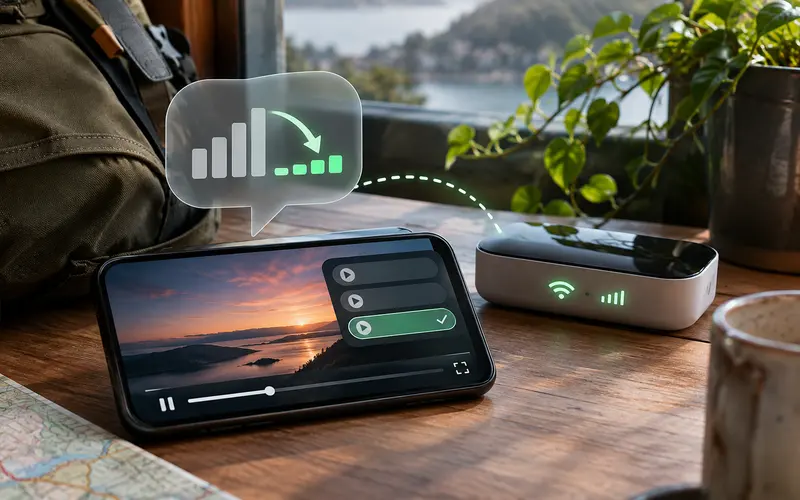
Open your operating system's cellular-data settings and note the app total before and after a normal viewing session. Reset or record the measurement only when you understand the billing-cycle setting.
Compare like with like: the same device, similar stream type, and a similar viewing duration. One short test cannot establish a monthly total.
A useful planning estimate starts with bitrate, not a marketing label. GB per hour is approximately Mbps multiplied by 0.45. For example, a steady 2 Mbps stream is about 0.9 GB per hour, 4 Mbps is about 1.8 GB per hour, and 8 Mbps is about 3.6 GB per hour. These are estimates, not guarantees: protocol overhead, adaptive quality, ads in unrelated apps, and a player that changes streams can move the real result. Use the calculation to set a cautious budget, then replace it with measurements from your own phone.
| Record | Why it helps | Example |
|---|---|---|
| Start and end totals | Shows actual use | Before and after a 30-minute session |
| Connection type | Separates Wi-Fi from cellular | Home Wi-Fi or hotspot |
| Player setting | Explains changes | Default or lower-quality option |
Use quality settings carefully
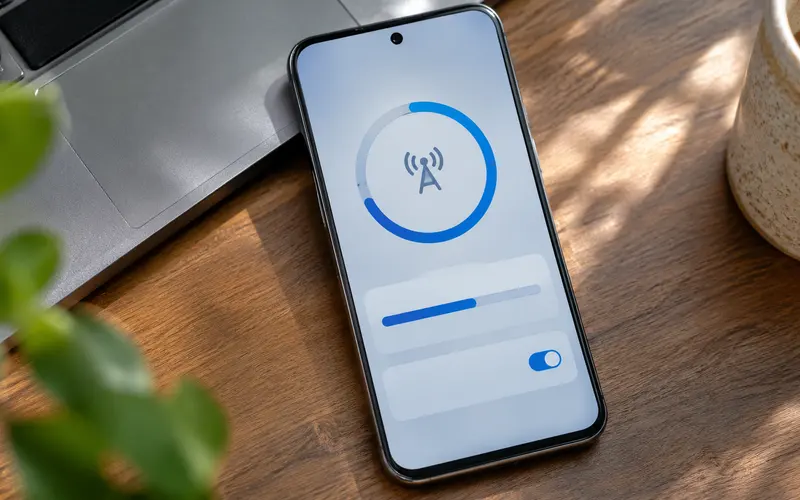
Some players expose quality or decoder choices, while others do not. Do not invent a setting that the installed player lacks. If a documented lower-quality option is acceptable for your screen, test it against the same content and record the result.
Lower data use can mean lower image detail. Choose the setting that fits the device and plan rather than chasing a universal recommendation.
Adaptive bitrate makes planning less exact because a player can request different quality levels as network conditions change. A stream may use less data during one portion and more during another without a visible setting change. If a documented quality control exists, test a normal program for a fixed period at the default setting and again at the lower setting. Compare the phone's totals and whether captions, motion, and guide navigation remain comfortable on the screen you actually use. Do not assume a label such as HD describes a fixed bitrate.
Prefer trusted Wi-Fi for longer sessions

Wi-Fi can reduce cellular-plan use, but a public network is not automatically trustworthy. Use current device security updates and avoid entering credentials into unknown captive portals.
At home, compare Wi-Fi and Ethernet when troubleshooting; a faster plan alone does not guarantee stable playback.
On iPhone, cellular usage can be reviewed in Settings under Cellular or Mobile Data, with controls that may prevent selected apps from using cellular service. On Android, the wording varies by manufacturer, but Settings normally provides Network or Internet and app-level data usage controls. Consult the current device documentation because menu labels and billing-cycle tools change. Record the plan cycle separately from a device counter: resetting a local counter does not change what the carrier records.
Treat a hotspot as a measured connection
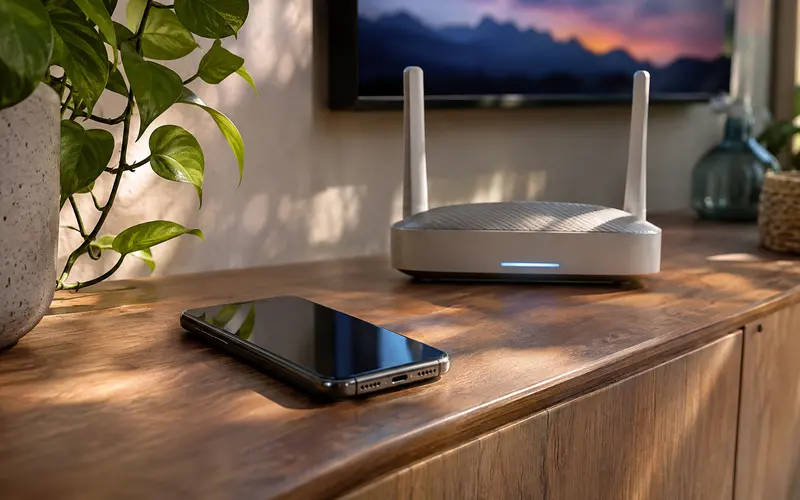
A hotspot can be useful for a short diagnostic comparison or travel, but its allowance, signal, congestion, and device limits may differ from home internet. Check the carrier plan and phone battery impact before a long session.
Keep other automatic downloads off the hotspot while testing so the measurement remains meaningful.
Direct phone streaming and hotspot streaming are not identical tests. A phone screen can use one app while a hotspot may also carry a television, laptop, update service, or another person's device. The hotspot total can therefore be much larger than the player total. For a practical worksheet, multiply a conservative estimated hourly amount by planned hours per week, then multiply by four and leave room for other phone use. Example: 1.8 GB per hour for three hours a week is roughly 21.6 GB over four weeks before overhead and unrelated traffic.
Schedule updates over Wi-Fi
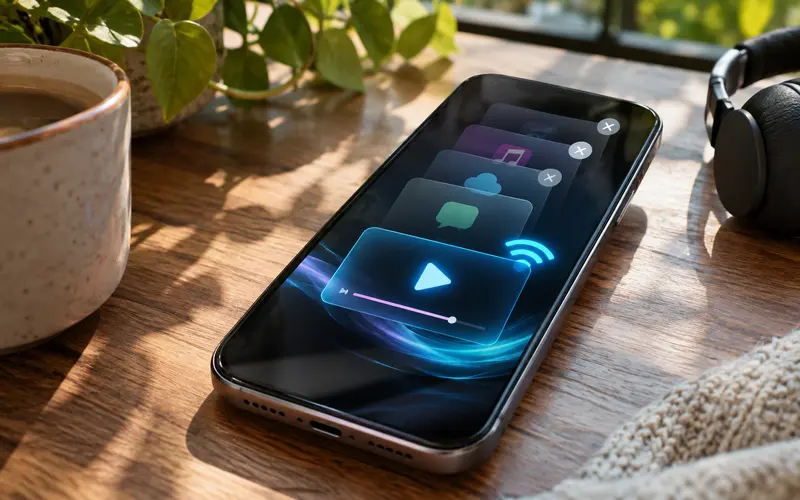
App updates, operating-system downloads, cloud backups, and automatic photo uploads can consume data separately from viewing. Configure those jobs for Wi-Fi when your device offers that choice.
This does not change the stream itself, but it prevents unrelated traffic from making a hotspot total confusing.
Check both the player and the operating system. A phone may download app updates, synchronize photos, refresh maps, or restore backups while a stream is running. Schedule those jobs over trusted Wi-Fi where the operating system offers the option, and review any setting that permits automatic downloads on cellular data. Do not disable security updates permanently; the sensible goal is timing them for a connection that fits the data plan.
Check background activity
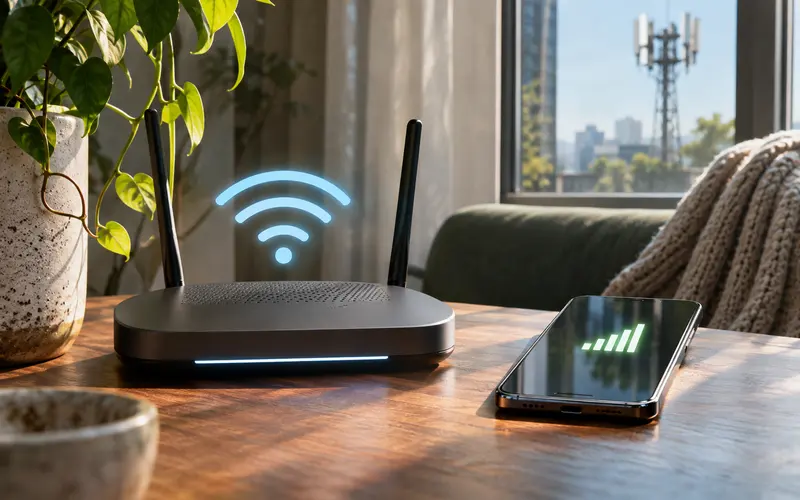
Review the device's data-usage list for background activity. Restrict only apps you understand; blocking an essential service can create login or update problems later.
Close unused apps before a controlled test, especially on older phones that may also struggle with memory pressure.
If your device supports a data saver or low-data mode, read the current platform documentation before enabling it. Those modes can limit background activity, but they may delay sync, reduce automatic refresh, or change how some apps behave. Apply one setting at a time, run the same short measurement, and keep the setting only when you understand the trade-off. This is safer than installing a third-party “data saver” that asks for broad device permissions.
Investigate unexpected use
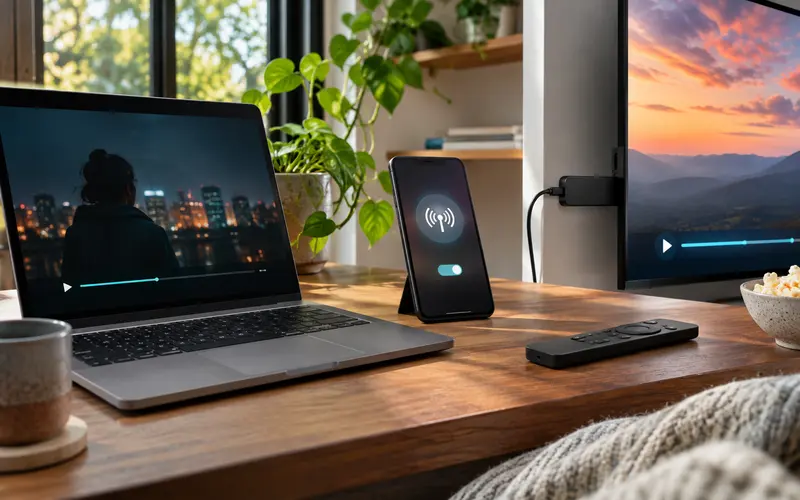
If the total looks surprising, check whether the session was cellular, whether another device used the hotspot, and whether the app was left playing. Then repeat a shorter measured session.
Use the internet-speed guide for connection context, not as a substitute for your phone's data meter.
Unexpected use is usually easier to solve by narrowing the question. Was the phone on cellular, did another device use the hotspot, did an update run, did the player remain active, or did the plan counter reset on a different date? Take one reading before and after a ten- or fifteen-minute session with other devices disconnected. If that result is still surprising, save the time and app total, then use the phone maker's or carrier's official support process rather than assuming a stream has a fixed data cost.
Travel viewing checklist
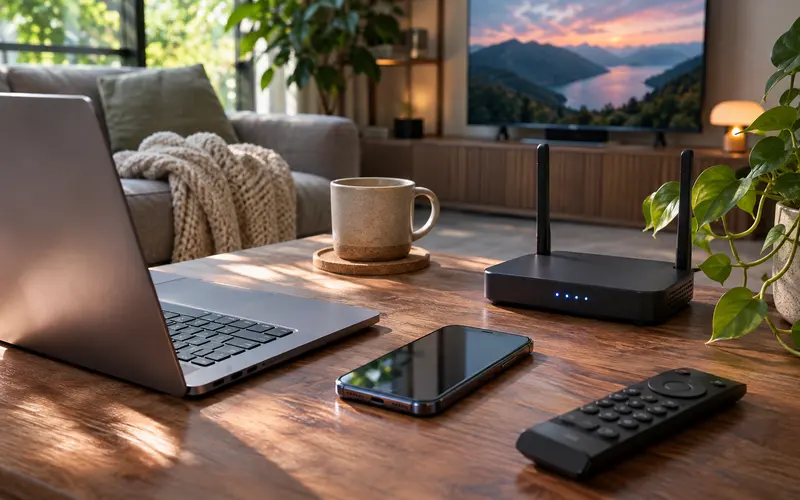
Before traveling, download permitted updates on Wi-Fi, pack a charger, verify the plan allowance, and test the player at home. On arrival, measure a short session before treating mobile viewing as an all-day option.
The practical goal is informed use: measure, adjust one variable, and stop before an avoidable overage.
Roaming deserves separate caution. Carrier roaming terms, high-speed allowances, throttling, and supported networks can differ from a domestic plan, even when the phone shows a familiar signal icon. Review the carrier's current terms before streaming abroad, turn off data roaming if it is not part of your plan, and use a trusted Wi-Fi connection when appropriate. A short measured check on arrival is safer than assuming a home data budget applies unchanged in another country.
FAQ
How much mobile data does IPTV use?
It varies with stream quality, duration, player behavior, and network conditions; measure the specific app on your device.
Does Wi-Fi always make streaming secure?
No. Prefer trusted networks and keep devices updated.
Can a hotspot replace home internet?
It can be useful for limited testing or travel, but plan limits and signal conditions vary.
Should I force a lower quality setting?
Only if the installed player documents one and the result remains acceptable for your use.
Sources & further reading
Related Guides
Keep reading
How Much Internet Speed Do You Need for IPTV? HD, Full HD and 4K Explained
A realistic guide to IPTV speed requirements, bandwidth planning, Wi-Fi behavior, and why stable delivery matters more than a single impressive speed test result.
17 min read · August 9, 2026
IPTV Buffering? 15 Ways to Diagnose and Fix Streaming Problems
A structured troubleshooting guide for IPTV buffering, freezing, and lag that helps you separate internet issues, device issues, app issues, and provider-side symptoms.
19 min read · August 9, 2026
Do You Need a VPN for IPTV? A Controlled Test Guide
Learn what a VPN changes, when it may help, when it adds overhead, and how to compare streaming with and without one without assuming the cause.
11 min read · November 6, 2026